
Are you ready to transform your Sims 4 house into a stunning masterpiece? Adding a new floor can be the game-changer you’ve been looking for.
Whether you want to create a cozy attic, an elegant second story, or a spacious basement, mastering this skill will open up endless possibilities for your virtual world. Imagine the thrill of watching your Sims explore new spaces that you’ve creatively designed.
In this guide, you’ll discover the step-by-step process to effortlessly add a floor in Sims 4, ensuring your virtual home stands out. Get ready to elevate your gameplay and captivate your Sims with new dimensions of living! Keep reading, and you’ll unlock the secrets to building your dream home.

Getting Started
Begin with Sims 4 installed on your computer. Ensure your computer meets the game’s system requirements. These include a compatible operating system, enough RAM, and a good graphics card. Having the latest game updates installed is crucial. Without them, adding floors may not work smoothly. Make sure you have the right expansion packs. Some packs offer extra features for floors. Finally, check your internet connection. It is needed for updates and some features.
Start by opening the Sims 4 application. Wait for the game to load completely. Find the main menu. From there, choose to start a new game or continue with an existing one. The game must be in build mode. This mode allows you to add floors. Locate the floor tool in the build menu. It’s easy to spot. Click to select it. Now, you’re ready to add floors to your house.
Accessing Build Mode
First, open your game. Then, select a house or lot. Look for a small hammer and wrench icon. Click it. This opens the Build Mode. It lets you change the house.
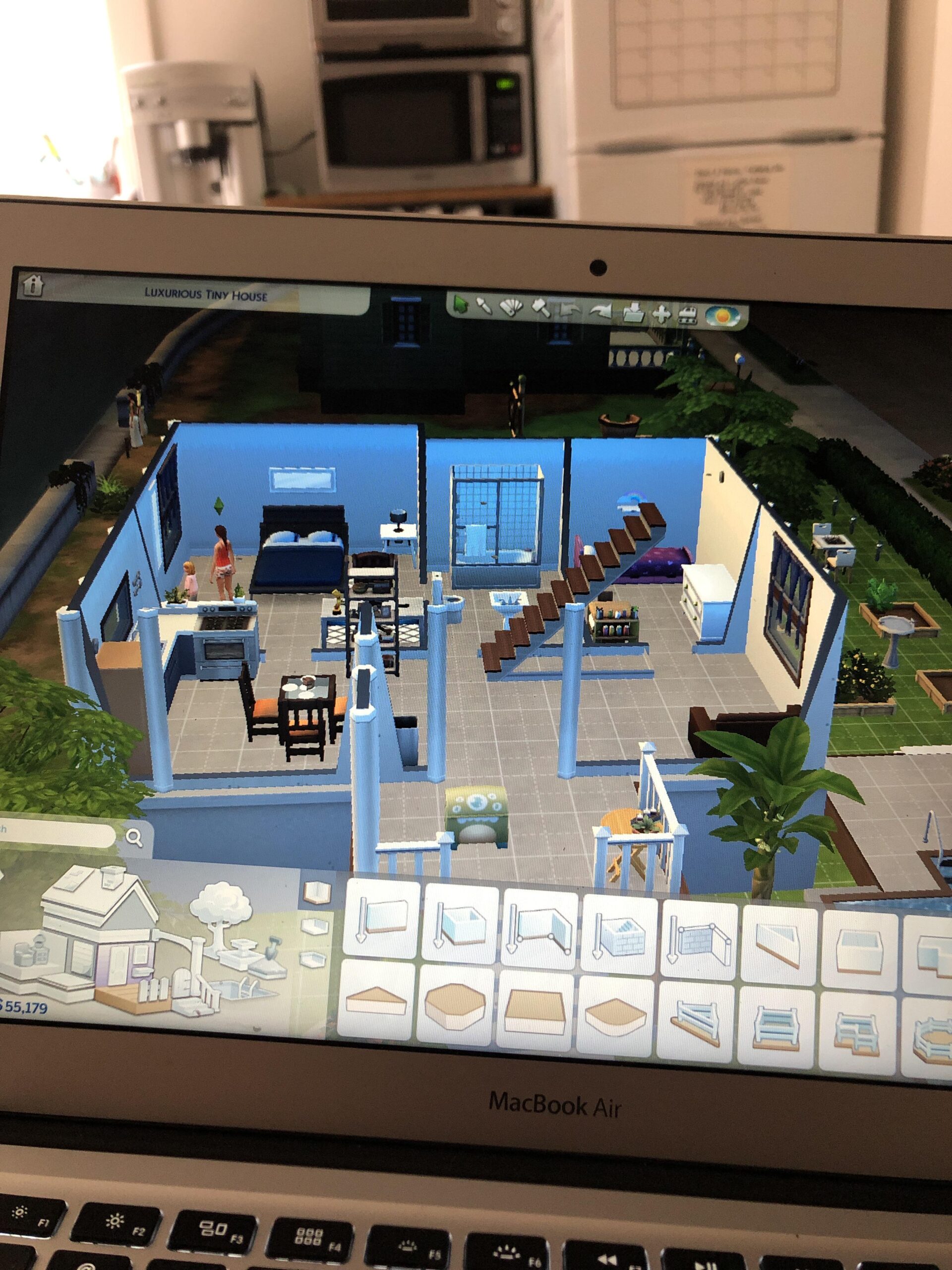
The screen shows many options. Each one helps you build. On the left, see walls, floors, and roofs. Click each to explore. The center shows your house. It changes as you build. Right side has the catalog. It lists items to use.
Use the mouse to move. Click and drag to place items. Use the undo button if you make a mistake. It helps fix things easily.
Choosing Floor Styles
Floor options in Sims 4 are many. Wood, tile, and carpet are popular. Each type has different colors and patterns. Wood floors offer a classic look. Tiles add a modern touch. Carpets give warmth and comfort. Players can mix styles to create unique spaces. The key is to match floors with room themes. Experiment with different options to find the best fit.
Selecting floors depends on the room’s use. Kitchens need durable tiles. Living rooms look great with wood. Bedrooms are cozy with carpets. Consider the color and texture too. Bright colors make rooms look bigger. Dark colors add drama. Remember to balance floor styles with furniture. This keeps the room stylish and neat.
Placing Floors
The floor tool helps to place floors in Sims 4. Open the build mode. Choose the floor tool from the menu. Click and drag to place the floor. It’s easy to cover small areas. For larger spaces, try different shapes. Rectangles work best for big rooms. Use the grid to align floors. Check the pattern for a perfect look. Experiment with colors and styles. Change the floor anytime. Just click again to pick a new design. Make your Sims happy with beautiful floors.
Covering large spaces can be tricky. Break them into smaller parts. Use rectangles or squares. It’s faster and looks neat. Keep the grid lines visible. This helps in alignment. Mix different floor styles. Create unique designs. Use light colors for open areas. This makes rooms appear bigger. Dark shades add warmth. Use them for cozy corners. Change floors when needed. Just use the tool again. Your Sims will love their new home.
Customizing Floor Patterns
You can change floor colors in Sims 4 easily. Select the floor tool. Choose a pattern you like. Next, pick a color. Make your floor fun and bright. Textures can also be adjusted. Try different styles. Some are smooth, others are rough. Experiment to find the best look.
Mixing styles creates a unique floor. Use wood in the living room. Try tile in the kitchen. Carpet works well in bedrooms. Combine different textures for a special effect. Your floor will look cool and different. Always have fun with your choices. It makes the game exciting.
Saving Your Design
Make sure all tiles fit together. Check your rooms and hallways. Look for any missing tiles. Fix them if needed. Try different designs. See which one you like best. Sometimes, small changes make a big difference. Use the zoom feature to see details. It’s easier to spot mistakes this way.
Open the game menu. Find the save option. Click on it. Wait for the game to save. This keeps your design safe. Save often. This way, you won’t lose your work. If you make changes, save again. It’s important to save before closing the game. This ensures all your work is stored.
Troubleshooting Common Issues
Struggling to add floors in Sims 4? Start by selecting the floor tool from the build menu. Ensure you have enough simoleons for your design. Check for missing requirements if the floor won’t place.
Fixing Floor Placement Errors
Placing floors can be tricky in Sims 4. Sometimes floors don’t fit. It’s common if walls are uneven. Check if all walls are connected. Ensure they make a complete room. Open gaps can cause errors. Use the wall tool to close gaps. Rebuild the walls if needed. This often solves placement issues.
Dealing With Glitches
Glitches can make your floors disappear. Save your game often. This helps recover lost work. Turn off all mods. Some mods cause glitches. Restart the game without them. If glitches persist, update your game. Developers release patches to fix bugs. Keep the game up-to-date. This prevents many glitches.

Tips For Creative Floor Designs
Patterns make floors exciting in Sims 4. Try zigzags, circles, or squares. Themes like beach, forest, or space can add fun. Use colors that fit the room’s style. Bright colors make rooms feel happy. Dark colors feel calm. Mix and match for a unique look. Remember, small changes can make a big difference. Try using different materials too. Wood, stone, or carpet each give a room a special feel.
Small rooms feel bigger with clever floor design. Diagonal tiles can help. Light colors make spaces seem open. Patterns can guide the eye, making rooms appear larger. Keep furniture away from walls. This creates more space to walk. Consider using mirrors to reflect light. It makes the room feel airy. Try combining different textures to add depth. Every little detail matters.
Frequently Asked Questions
How Do I Add New Floors In Sims 4?
To add new floors in Sims 4, enter build mode and select the level tool. Click on the area where you want the new floor. Adjust the height and layout as needed. You can add stairs for access between levels, enhancing your architectural design.
Can I Change Floor Styles In Sims 4?
Yes, you can change floor styles in Sims 4. Enter build mode and select flooring options. Choose from various styles, colors, and materials. Click on the floor area to apply your chosen style, allowing you to customize your Sims’ home to match your aesthetic preferences.
How Do I Remove Floors In Sims 4?
To remove floors in Sims 4, enter build mode and use the sledgehammer tool. Click on the floor you want to remove. This tool helps you efficiently delete unwanted floors, making it easy to redesign spaces or correct mistakes in your Sims’ home.
Are There Cheats For Adding Floors In Sims 4?
Cheats can simplify adding floors in Sims 4. Enable cheats by pressing Ctrl + Shift + C and typing “testingcheats true. ” Use “bb. moveobjects” for more flexibility in placing items. Cheats enhance your building experience, allowing creative freedom without constraints.
Conclusion
Adding floors in Sims 4 enhances your creative gameplay. You can design unique homes and spaces. Experiment with different floor styles and colors. Transform rooms to match your vision. It’s simple and fun. Use the build mode tools for easy adjustments.
Practice makes perfect. With time, you’ll create stunning interiors. Share your designs with friends and enjoy their feedback. Keep exploring new ideas. The possibilities are endless. Happy building and enjoy your Sims world.